AI video generation has gotten remarkably good at motion, coherence, and prompt adherence. What it still struggles with is resolution. Most generation models cap out at 720p or 1080p natively, and pushing them to output 4K directly either isn't possible or costs a fortune in compute. The result: creators end up with videos that look great in motion but soft, blurry, or compressed when viewed on a large screen or exported for professional use.
Topaz Video Upscale fixes that gap. It's now available on Kunya AI as a post-processing model that sits alongside more than five video generation models on the platform, including Gemini Omni Flash T2V and I2V. Generate your clip, then run it through Topaz to turn it into crisp, broadcast-ready 4K footage. No separate software, no separate subscription, no manual export-import cycle between tools.
What Is Topaz Video Upscale
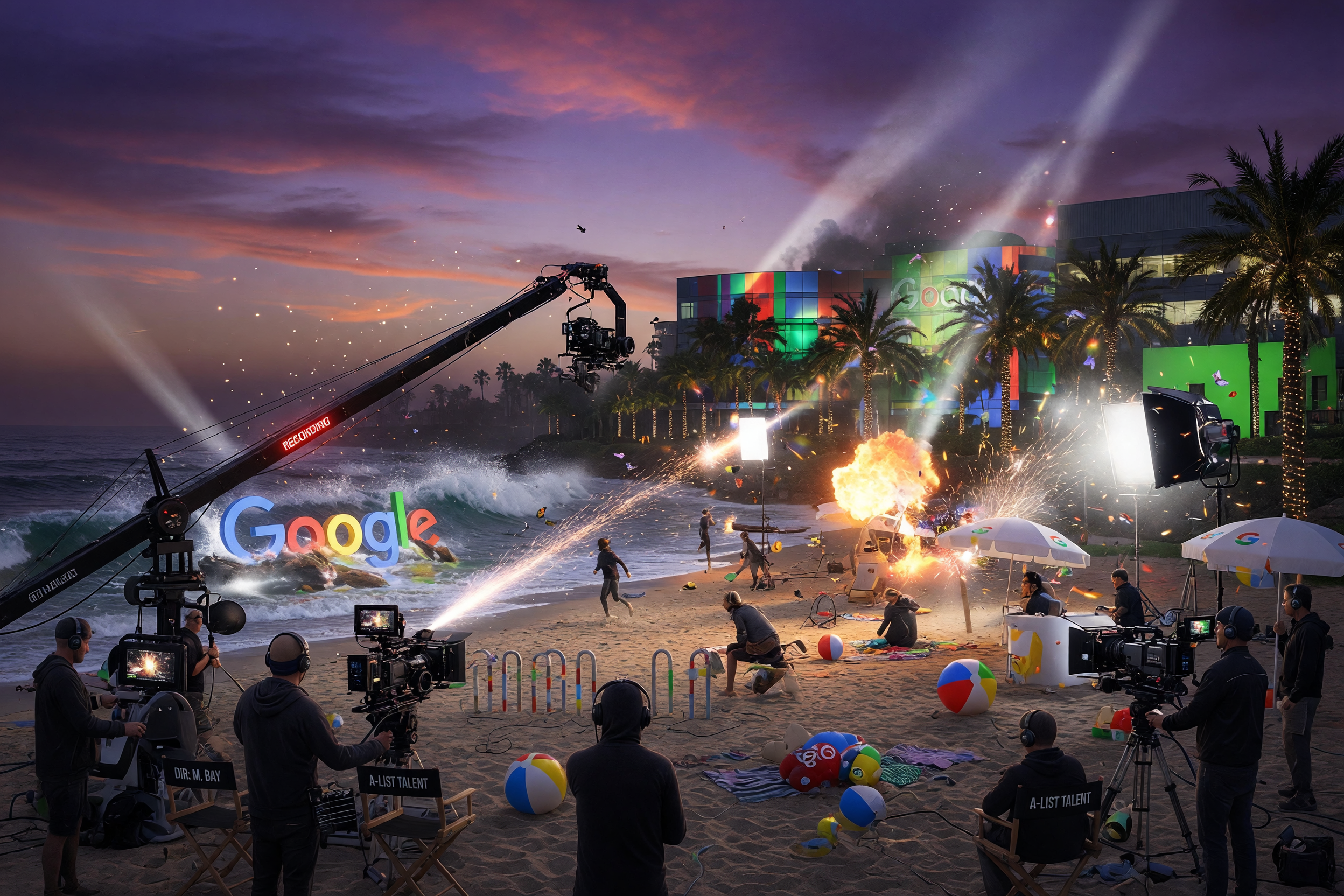
Before

Standard AI video output with softer detail and lower apparent resolution.
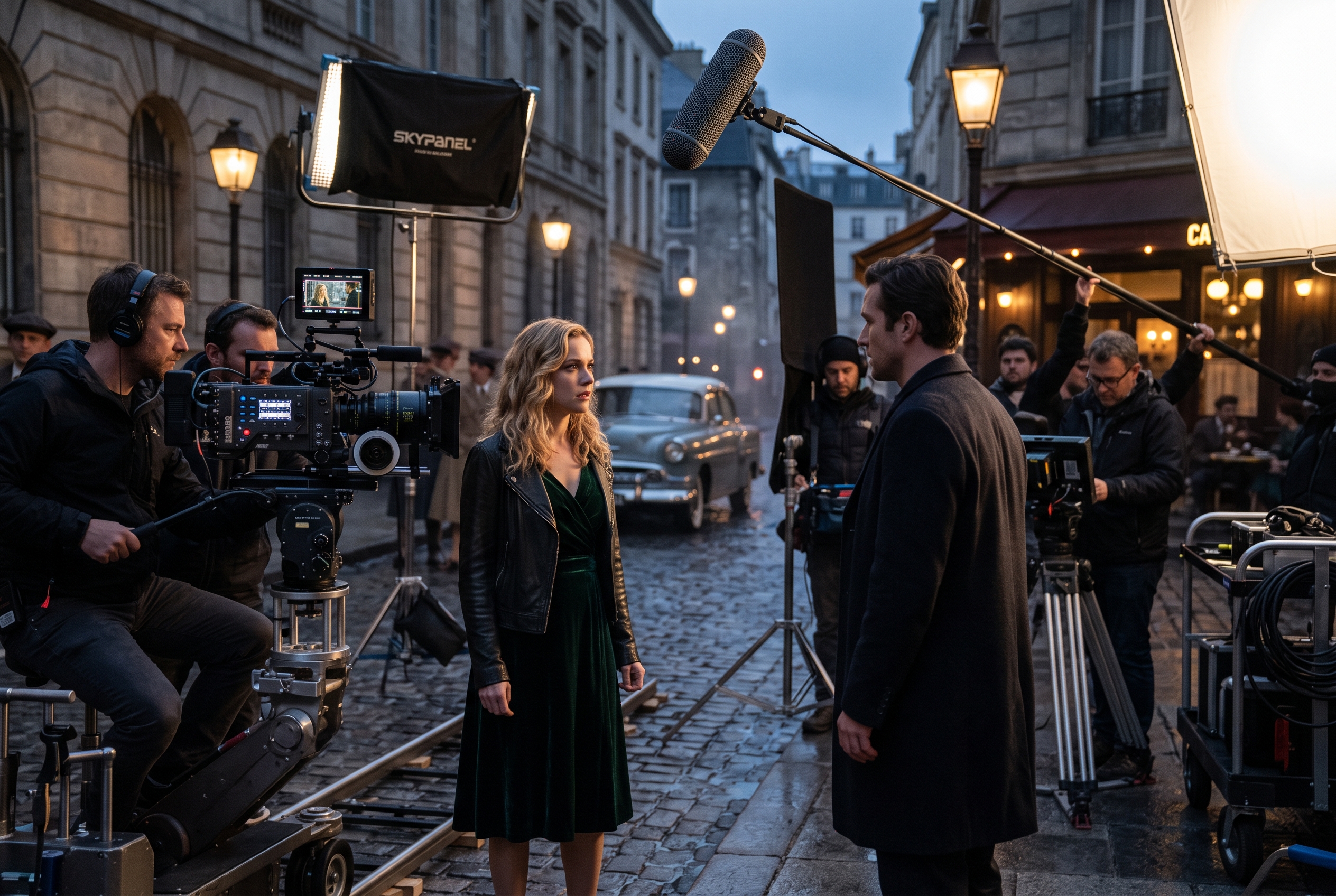
After (4K Upscale)

Topaz Video Upscale result with sharper edges, cleaner textures, and stronger perceived detail.
Topaz Video Upscale is built on technology from Topaz Labs, widely regarded as the gold standard in AI-powered video and image enhancement. Professional colorists, editors, and VFX studios have relied on Topaz tools for years to rescue low-resolution footage and restore archival media.
The key difference between Topaz and traditional upscaling is how it handles missing detail. Standard upscaling stretches existing pixels across a larger canvas, which just makes blur bigger. Topaz's AI model does something fundamentally different: it analyzes the frame, understands what it's looking at, and generates new, plausible detail that wasn't in the original file. Edges sharpen. Textures reappear. Faces, text, and fine patterns come back into focus instead of smearing.
On Kunya AI, Topaz Video Upscale supports three modes:
- 1x for detail enhancement and cleanup without changing resolution
- 2x for a moderate resolution boost, ideal for 720p to 1440p
- 4x for a full jump, such as 720p or 1080p straight up to 4K
Importantly, this isn't limited to AI-generated video. Any video file you upload to Kunya can be run through Topaz, whether it came from an AI model, a phone camera, an old camcorder, or a stock footage library.
How It Pairs With AI Video Generation Models
This is where Topaz Video Upscale becomes more than a nice add-on and turns into a real production strategy. Kunya AI hosts multiple video generation models, each with different strengths, and none of them are designed to output native 4K economically. Instead, the smart workflow looks like this:
- Generate your clip at the model's native resolution, typically 720p or 1080p, using whichever generation model fits your project, such as Gemini Omni Flash T2V or I2V.
- Run the output through Topaz Video Upscale at 2x or 4x.
- Export a sharp, detailed 4K file ready for publishing, editing, or client delivery.
This two-step pipeline, generate then upscale, consistently produces better results than trying to force a generation model to output 4K directly. Generation models spend their compute budget on motion coherence, temporal consistency, and prompt fidelity. Upscaling models spend their compute budget on spatial detail. Asking one model to do both at once means compromises. Splitting the job lets each model focus on what it does best.
Why Native 4K Generation Falls Short
Even when a generation model technically supports higher resolutions, quality often doesn't scale linearly with resolution. You frequently get the same level of underlying detail stretched across more pixels, which looks better on paper but not much sharper in practice. Topaz, by contrast, is purpose-built to add detail, not just resolution.
Why It's Better Than Native 4K Generation
Cost is the other half of this story, and the math is not close.
Native 4K video generation, where supported at all, consumes significantly more compute per second than 720p or 1080p generation. Model providers pass that cost directly on to users through higher credit consumption. A 10-second clip generated natively at 4K can cost several times more than the same clip generated at 720p.
Now compare that to the generate-then-upscale approach:
- Generate a 10-second clip at 720p using your model of choice, at standard generation pricing.
- Upscale that same clip to 4K using Topaz, at a fraction of the per-second cost of native 4K generation.
The combined cost of generation plus upscaling is dramatically lower than native 4K generation, while the output quality lands in the 90 to 95 percent range of what true native 4K generation would produce, if it were available at all. For nearly every use case, that quality difference is invisible to the viewer, but the cost difference is very visible on your invoice.
This is the same logic professional studios have used for years: shoot or render at a manageable resolution, then use dedicated upscaling tools for the final polish. Kunya AI just makes that workflow available to anyone, without needing a VFX pipeline or a separate Topaz Labs license.
Real Use Cases
1. Upscaling AI Marketing Videos to 4K
Brands generating product videos, social ads, or explainer content with AI often need a final 4K master for broadcast, large displays, or premium ad placements. Generating at 1080p and upscaling with Topaz delivers that polish without paying native 4K generation prices for every revision.
2. Restoring and Upscaling Archival Footage
Old home videos, historical footage, or early digital camera clips are frequently stuck at low, compressed resolutions. Topaz Video Upscale can breathe new life into this footage, sharpening detail and preparing it for modern displays without the artifacts of basic upscaling.
3. Enhancing Image-to-Video Outputs
When you turn a still image into motion using Gemini Omni Flash I2V, the resulting clip inherits the resolution constraints of the generation process. Running that output through Topaz afterward sharpens fine details, like fabric texture or facial features, that matter most in close-up shots.
4. Frame Rate Interpolation for Smoother Slow Motion
Beyond resolution, Topaz's underlying technology also handles frame interpolation, smoothing out motion for slow-motion effects or converting choppier frame rates into fluid, professional-looking footage. This pairs especially well with AI-generated clips that sometimes suffer from motion stutter at lower frame rates.
Who Is It For
Topaz Video Upscale on Kunya AI is built for anyone who generates or works with video and cares about final output quality:
- Video creators and editors who need consistent, professional resolution across a project without juggling multiple tools.
- Marketers and social media teams producing high volumes of AI video content that still needs to look premium on 4K displays and high-resolution feeds.
- Filmmakers and archivists restoring older footage or upscaling AI-assisted pre-visualization work into shareable quality.
- Agencies and freelancers delivering client work where "good enough for AI" isn't good enough for a paying client's brand standards.
If your output ever ends up on a screen larger than a phone, or in front of a client who will zoom in, Topaz Video Upscale is the step between "AI-generated" and "broadcast-ready."
How to Use It on Kunya AI
The workflow is deliberately simple. Generate a video using any model available on Kunya AI, then apply Topaz Video Upscale as a post-processing step, right inside the same platform. There's no exporting to a separate app, no managing a second subscription with Topaz Labs, and no learning a new interface.
Pricing for Topaz Video Upscale on Kunya is straightforward and scales with the resolution you're targeting:
- $0.01 per second for upscaling up to 720p
- $0.02 per second for upscaling from 720p to 1080p
- $0.08 per second for upscaling above 1080p, including 4K
Even at the top tier, upscaling a 10-second clip to 4K costs a fraction of what native 4K generation would run, making it an easy final step rather than a budget concern.
This is also where Kunya's broader value proposition comes into play. Rather than paying for a video generation subscription, a separate Topaz Labs license, and yet another tool for editing, Kunya AI consolidates the entire pipeline. The Starter plan at $19/month and the Professional plan at $29.99/month give you access to generation models, Topaz Video Upscale, and editing tools in one place, with one bill and one login. For creators juggling multiple subscriptions just to finish a single video, that consolidation alone often pays for itself.
Conclusion
AI video generation solved motion and creativity. Topaz Video Upscale solves resolution. Together, on Kunya AI, they close the gap between "impressive AI demo" and "footage you'd actually put in front of a client, an audience, or a broadcast standard."
Instead of paying premium prices for native 4K generation that may not even be available on your model of choice, generate at native resolution and let Topaz do what it does best: rebuild detail with AI precision. Generate, upscale, and edit, all without leaving Kunya AI.